Onsite Operator
This page is for the onsite operator, who is physically present at the drone's location. The onsite operator is responsible for ensuring the safety of the drone and its surroundings during the flight. The onsite operator must have a stable internet connection and a compatible remote controller connected to the drone.
Connecting the Remote Controller
Please connect the remote controller to the drone and ensure that the drone is powered on. The remote controller must be connected to the internet for the Livestream app to function properly.
Note: You will see livestreaming video from the drone camera on the page, but the instruction images on this page do not show livestreaming video.
If you don't see a video feed on the page, please check the following page: Trouble Shooting
Flight Menu
Please select 'Onsite' and click the open button to go to the flight page for the onsite operator.
User Interface
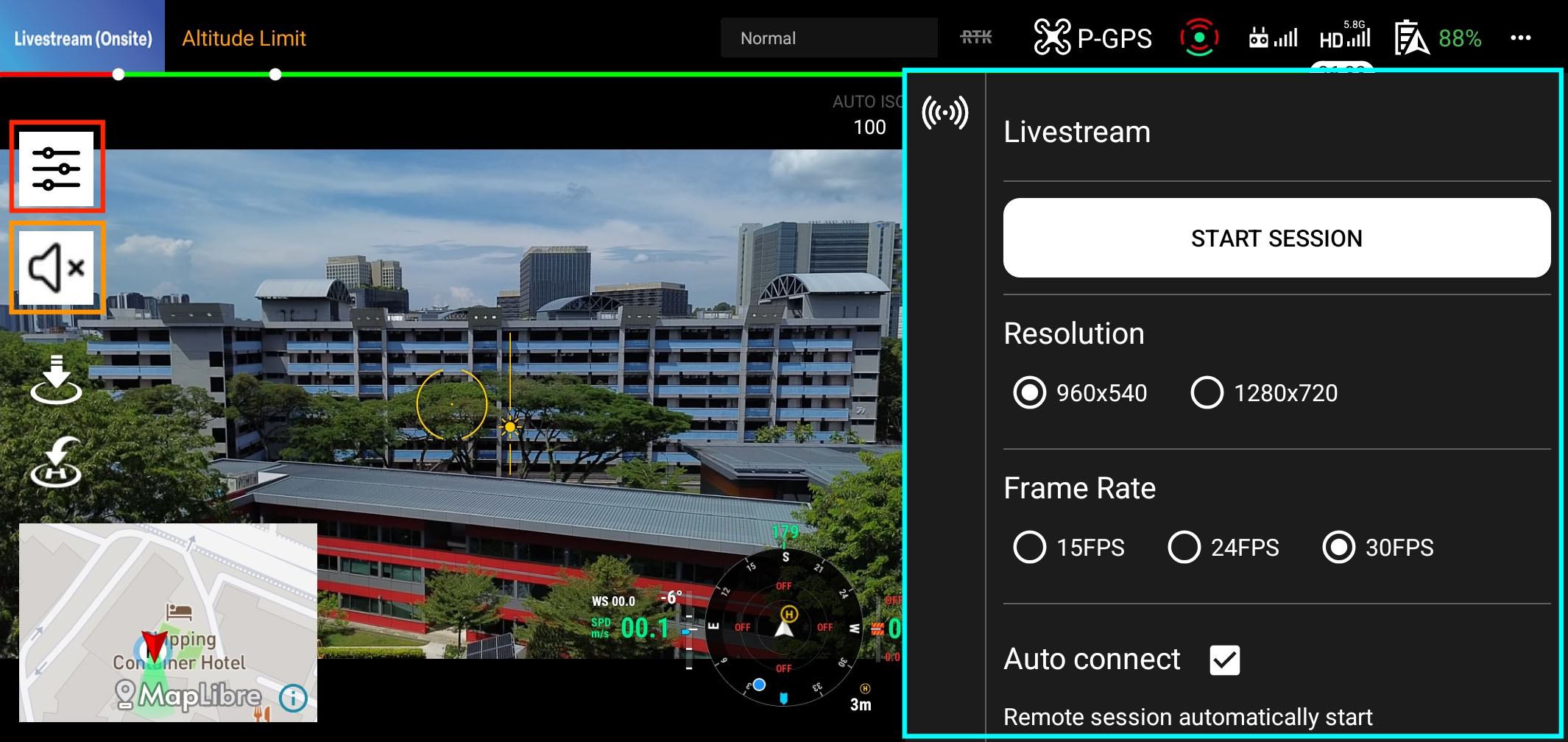
-
Panel Button (red-color-bordered): The Panel button opens and closes the panel on the right side of the screen. Close it if you need more space for the livestreaming video.
-
Speaker Button (orange-color-bordered): Mute or unmute the speaker to talk with the remote pilot.
-
Command Panel (light-blue-color-bordered): Use this panel to set up the livestream.
Hiding the Command Panel
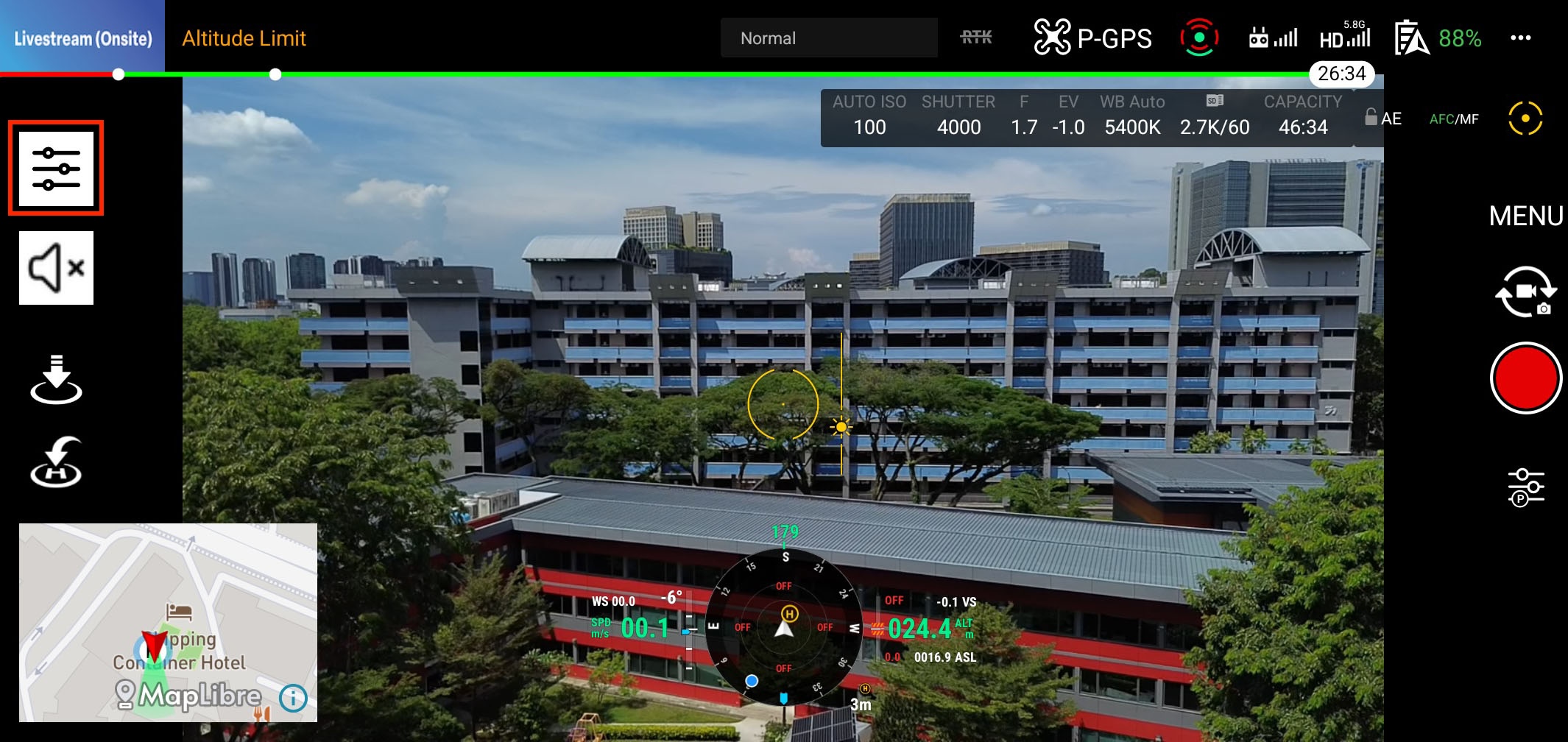 You can hide the command panel by clicking the panel button (red-color-bordered) in the top-left corner of the screen.
Start a Session
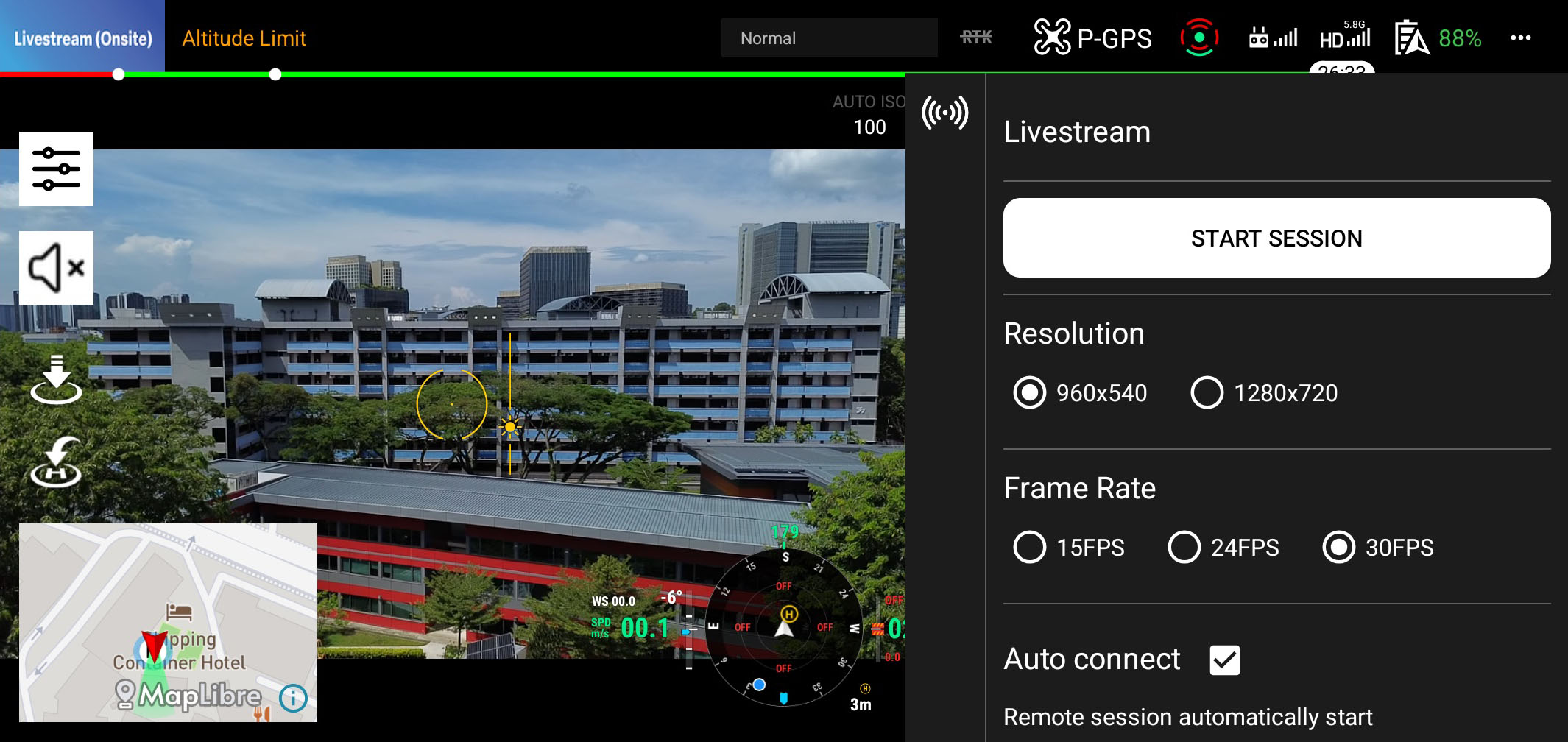
Please click the "Start Session" button to start the livestream with the following configuration.
Configuration
- Resolution: The resolution of the video stream. You can choose between 960p and 720p. (1080p will be supported soon)
- FPS: The frame rate of the video stream. You can choose 15fps, 24fps, or 30fps.
- Auto Connect: Automatically start a session the next time you open the flight page. If you want to connect manually, please uncheck this option.
Session Status
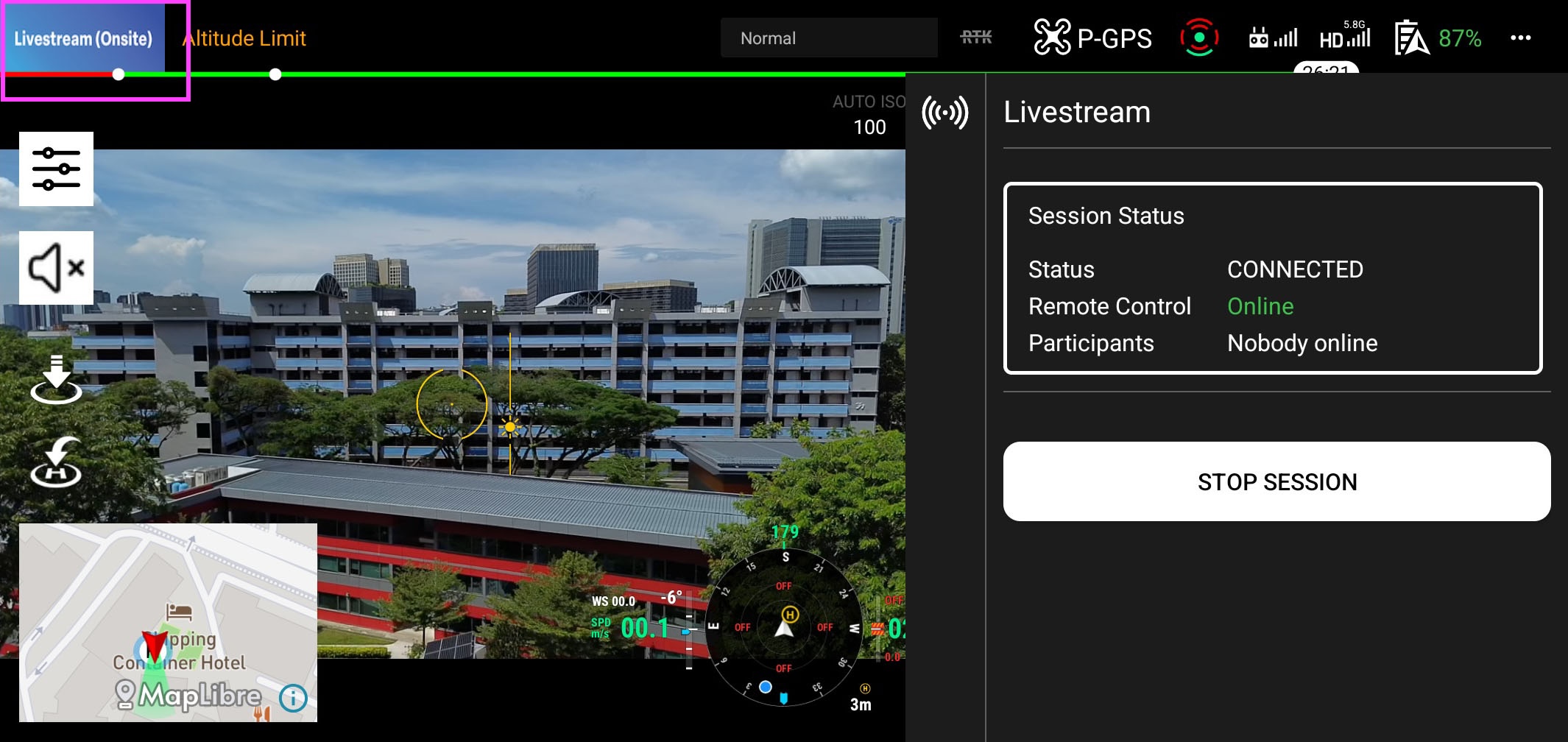
Once the session starts, you will see the following screen on the right. The offsite operator will be able to see the video stream from the drone's camera.

Buttons
- Stop Button: Use this button to stop the session.
Close the Page
Once you click the logo image in the top-left corner of the page, you will be redirected to the menu page. The remote session will stop automatically.