Waypoint Mission
This page provides detailed instructions on how to use Waypoint Mission in the Mission app.
1. Home Tab
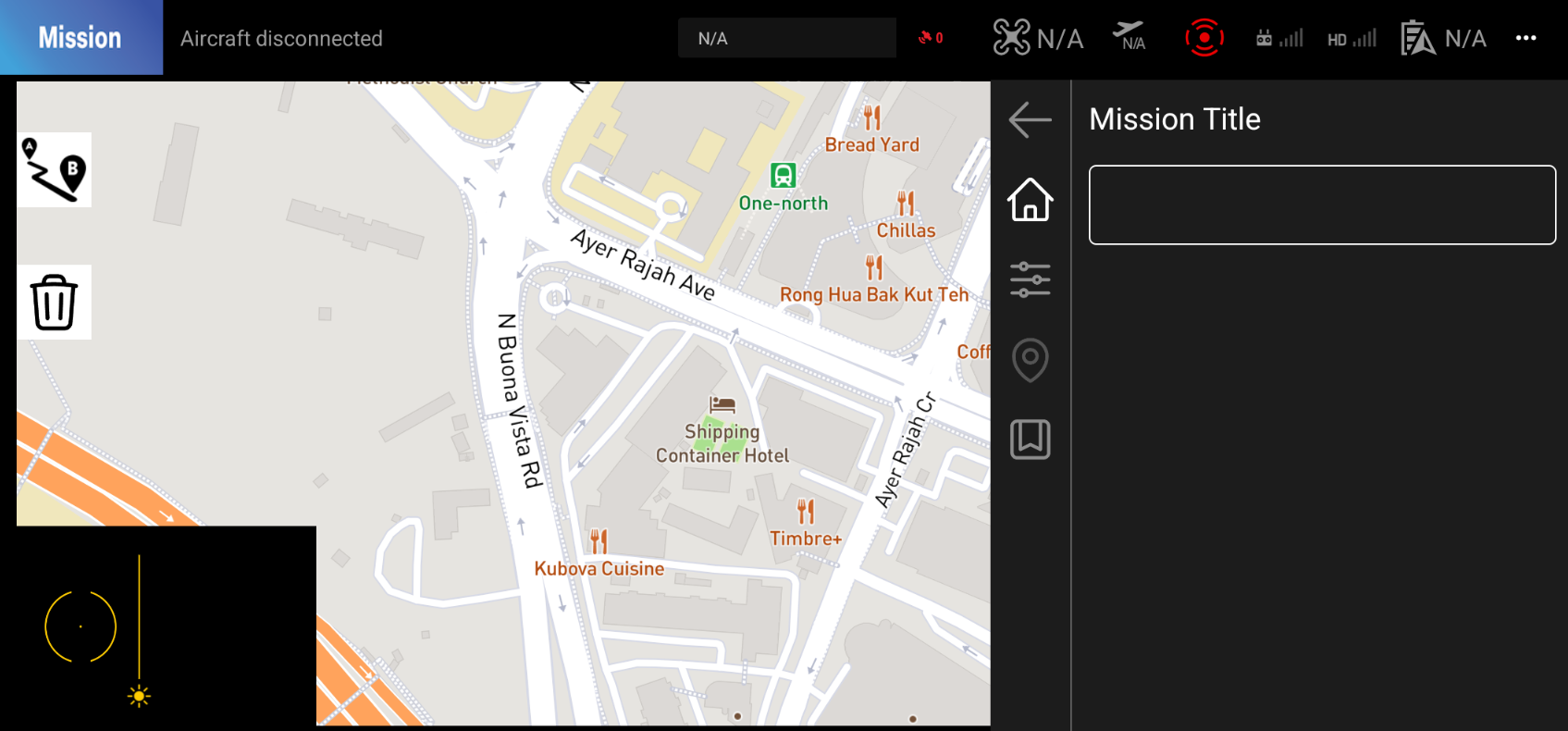 Please enter the title of the mission that you would like to create.
2. Configuration Tab
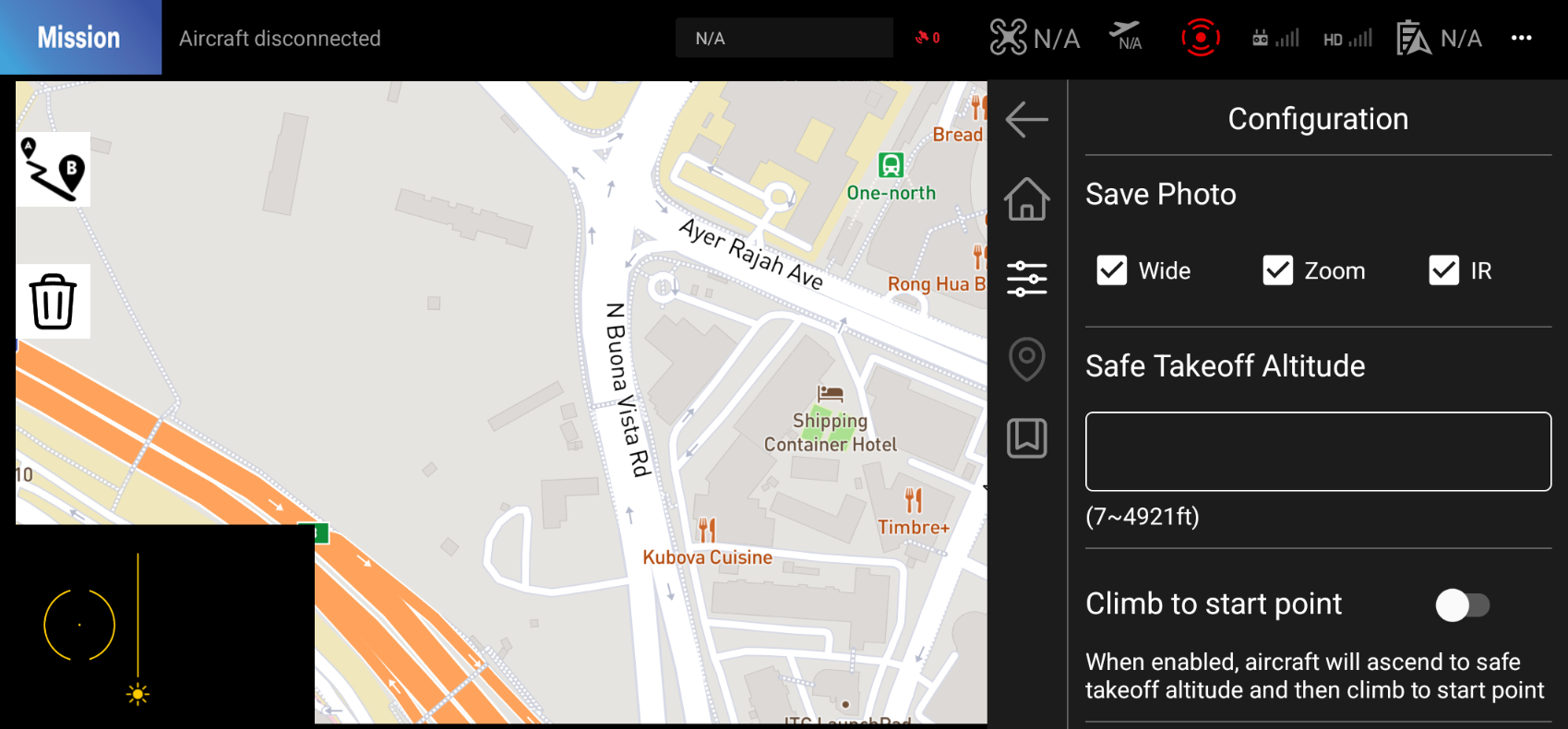
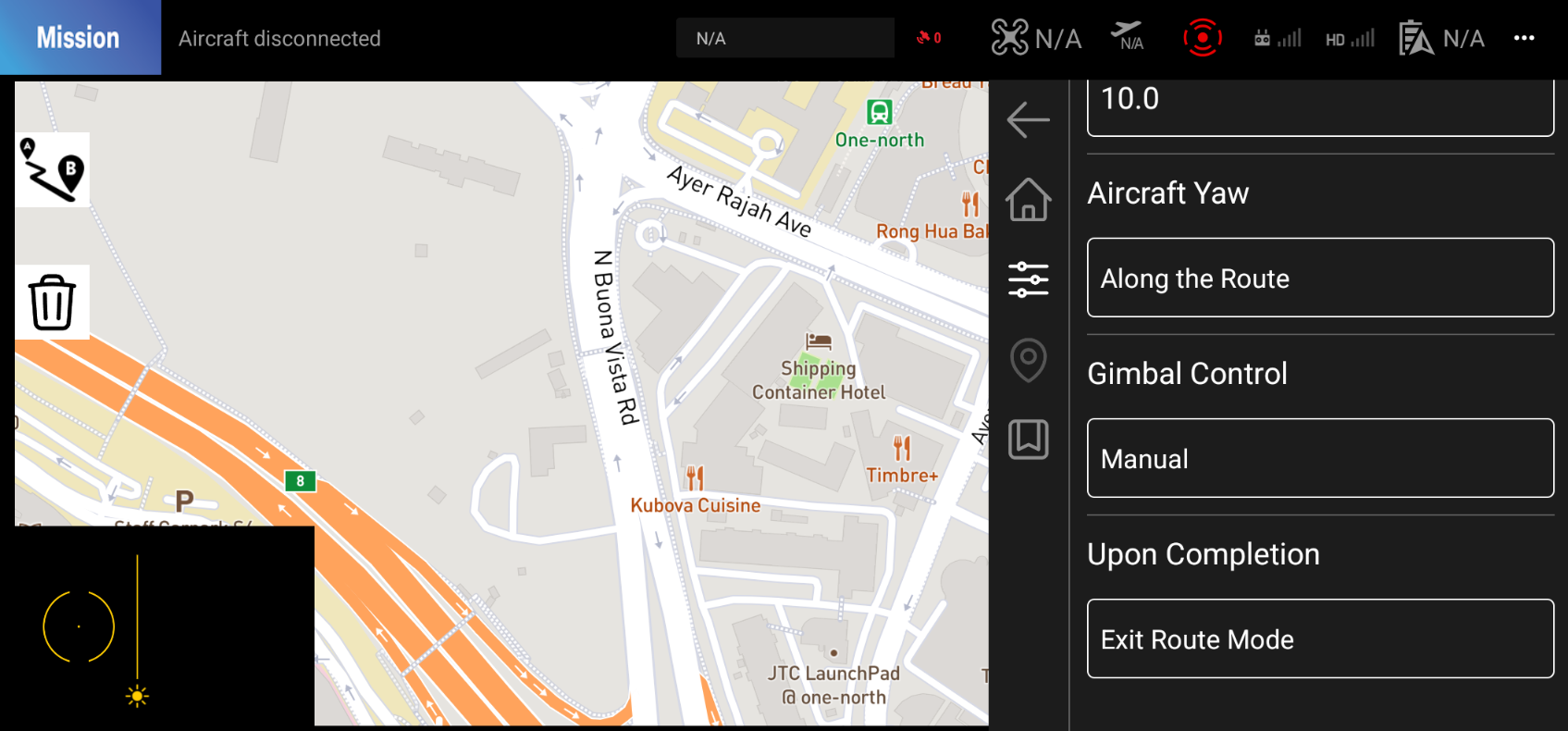
The Configuration tab is the second tab in the Mission Form. This tab allows you to set the general configuration for the mission you are creating.
3. Parameters
3.1. Save Photo
3.2. Safe Takeoff Altitude
This parameter allows you to set the altitude at which the drone will take off. (The Climb to start point option must be enabled in the Configuration tab.)
3.3. Climb to Start Point
This parameter allows you to set whether the drone climbs to the start point before starting the mission.
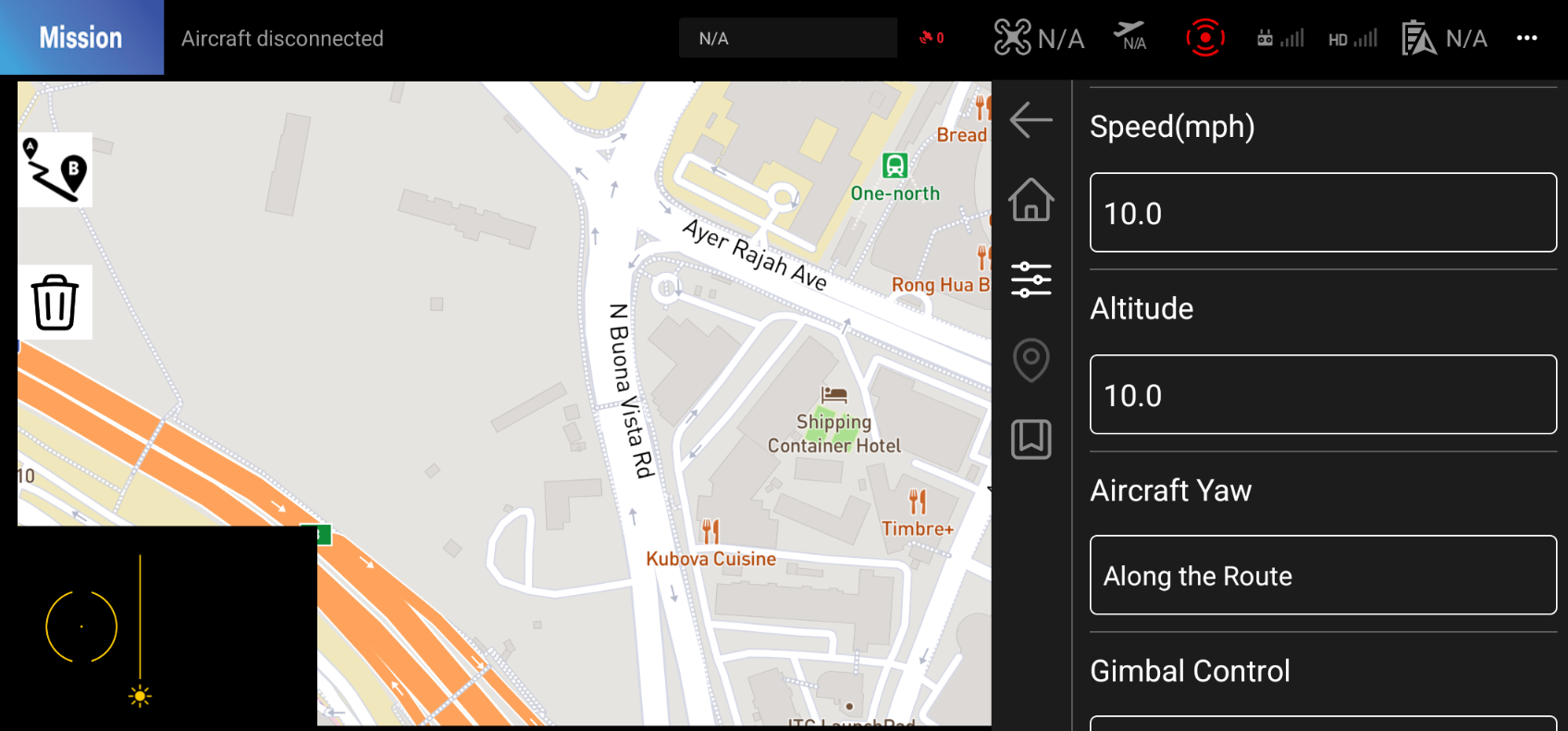
3.4. Speed
This parameter allows you to set the speed at which the drone will fly between waypoints.
3.5. Ascent Speed
This parameter allows you to set the ascent speed when taking off.
3.6. Altitude
This parameter allows you to set the altitude at which the drone will fly.
3.7. Wait Time
This parameter allows you to set the time that the drone will wait at each waypoint.
3.8. Aircraft Yaw
This parameter allows you to set the heading of the drone.
Available Options
1. Along the Route
The drone heading will be set to the direction of the next waypoint.
2. Lock Yaw Axis
The drone heading will be locked to the direction it was facing when the mission started.
3. Manual
The drone heading will be controlled manually during the mission with the joystick.
3.9 Gimbal Control
This parameter allows you to set the gimbal control for the drone.
Available Options
1. Manual
The gimbal will be controlled manually during the mission with the remote controller.
2. For Each Waypoint
The gimbal will be set to the position you set for each waypoint.
3.10 Upon Completion
This parameter allows you to set the action that the drone will take upon completion of the mission.
Available Options
1. Exit Route Mode
The drone will hover at the last waypoint.
2. Return to Home
The drone will return to the home point.
3. Land
This parameter allows you to set whether the drone will land upon completion of the mission.
4. Return to Start Point and Hover
The drone will return to the start point and hover.
4. Waypoint Tab
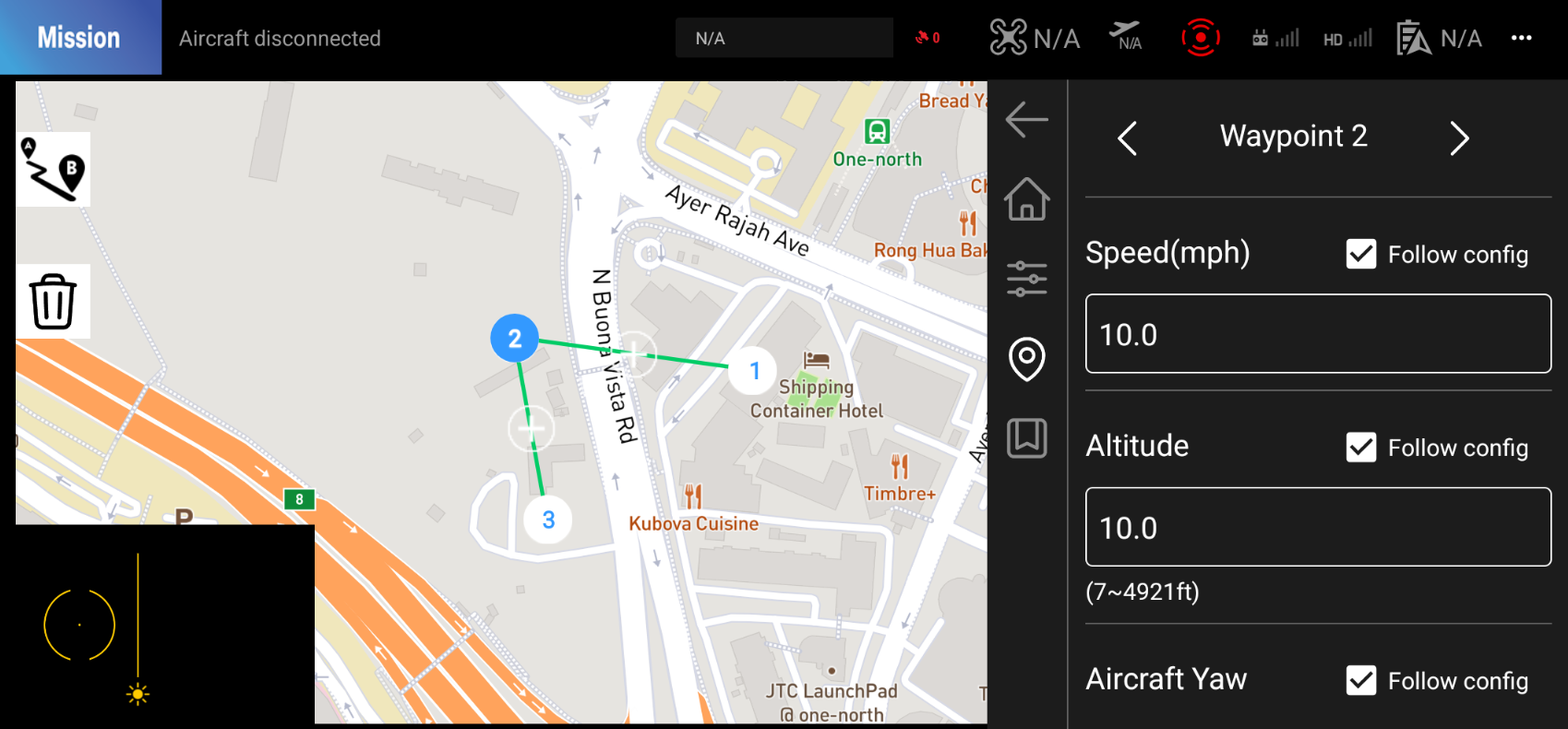
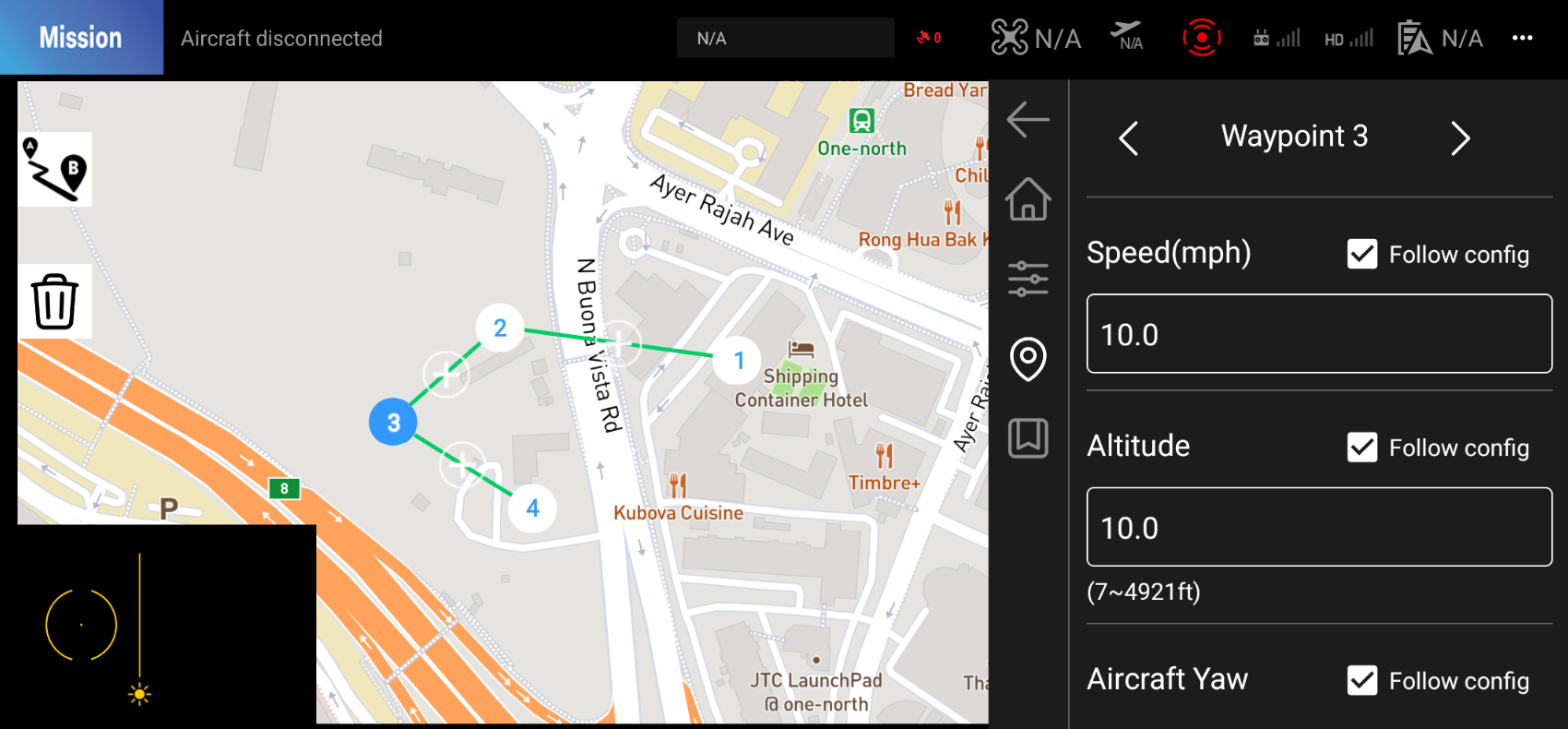
The Waypoint tab is the third tab in the Mission Form. This tab allows you to set parameters for each waypoint in the mission.
4.1. Add Waypoint
You can add a waypoint by tapping on the map or by tapping on the + button on the map.
4.2. Change Waypoint
You can change the current waypoint by clicking the arrow buttons on the waypoint tab or by clicking the waypoint icon on the map.
4.3. Delete Waypoint
You can delete the last waypoint by clicking the trash icon on the screen.
4.4. Waypoint Parameters
These are basically the same as the parameters on the Configuration tab, but they apply to each waypoint.
If you want to change the parameters for each waypoint, you can set them on this tab by deselecting the Follow config option.
5. Save Mission
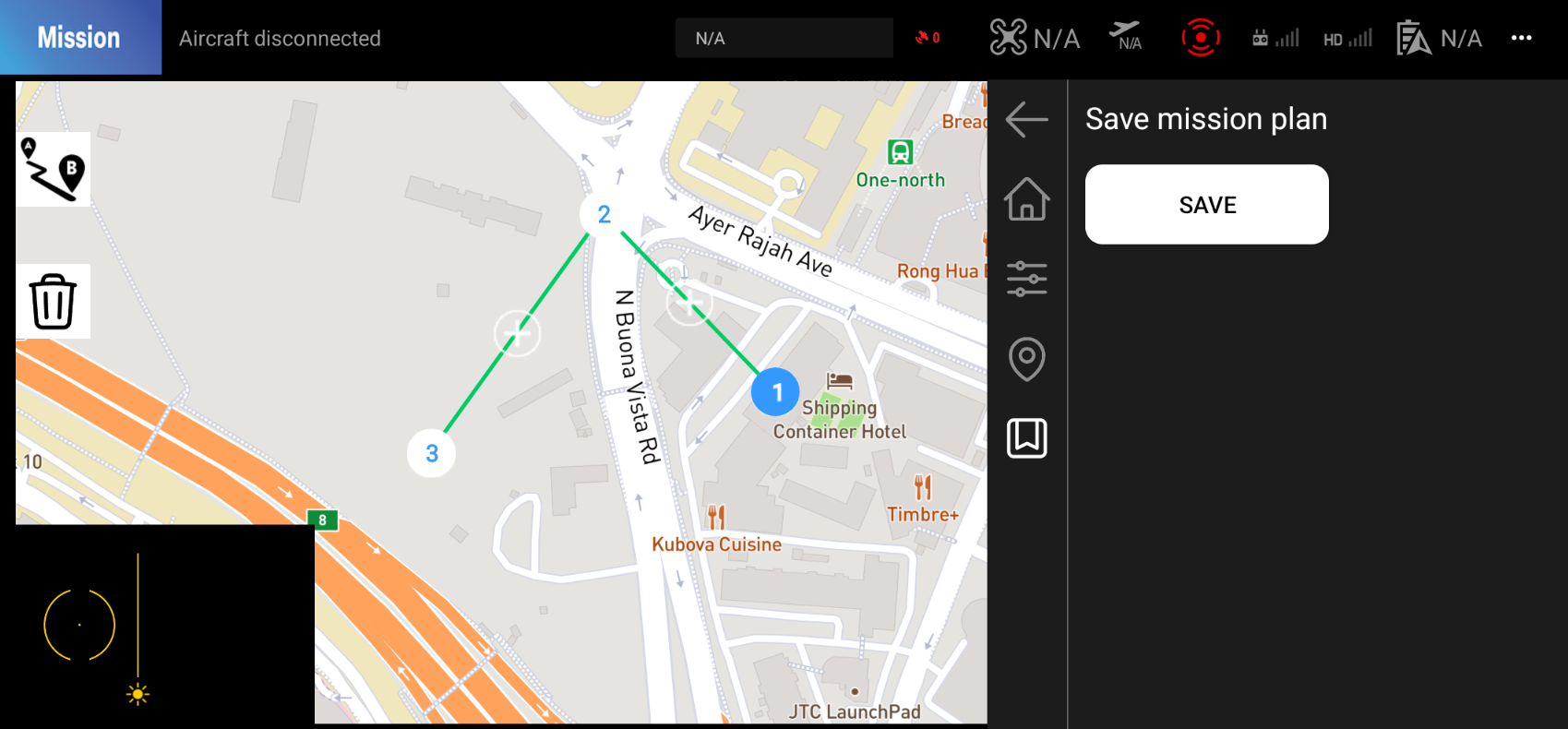
Once you have set all the mission parameters, you can save the mission by clicking the Save button in the top-right corner of the screen.