Web Dashboard
You can watch the livestreaming video on the web dashboard. The web dashboard is available at the following URL: https://app.dronewebservices.com
How to Go to the Remote Control Page
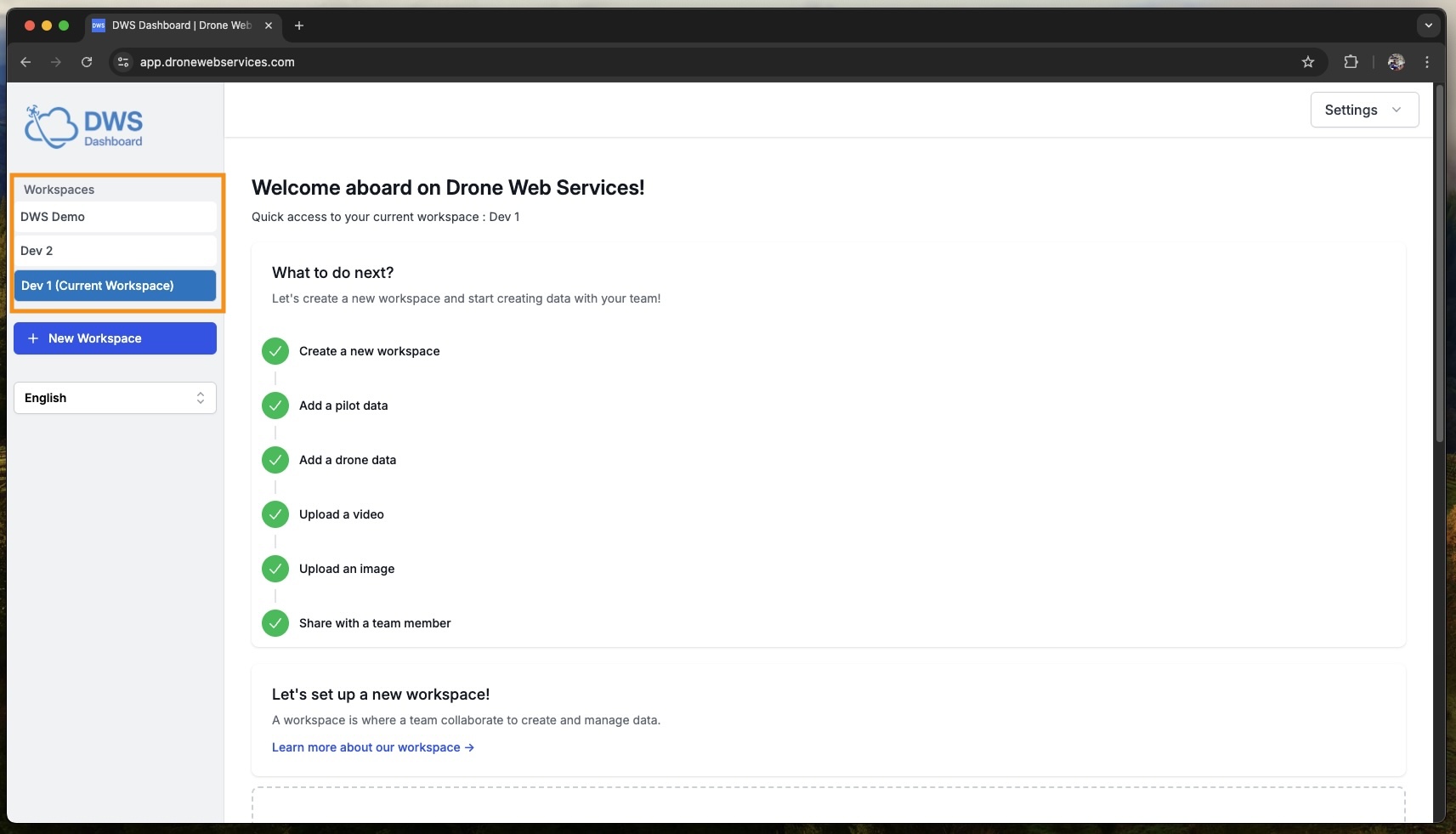
- Please select the relevant workspace from the sidebar.
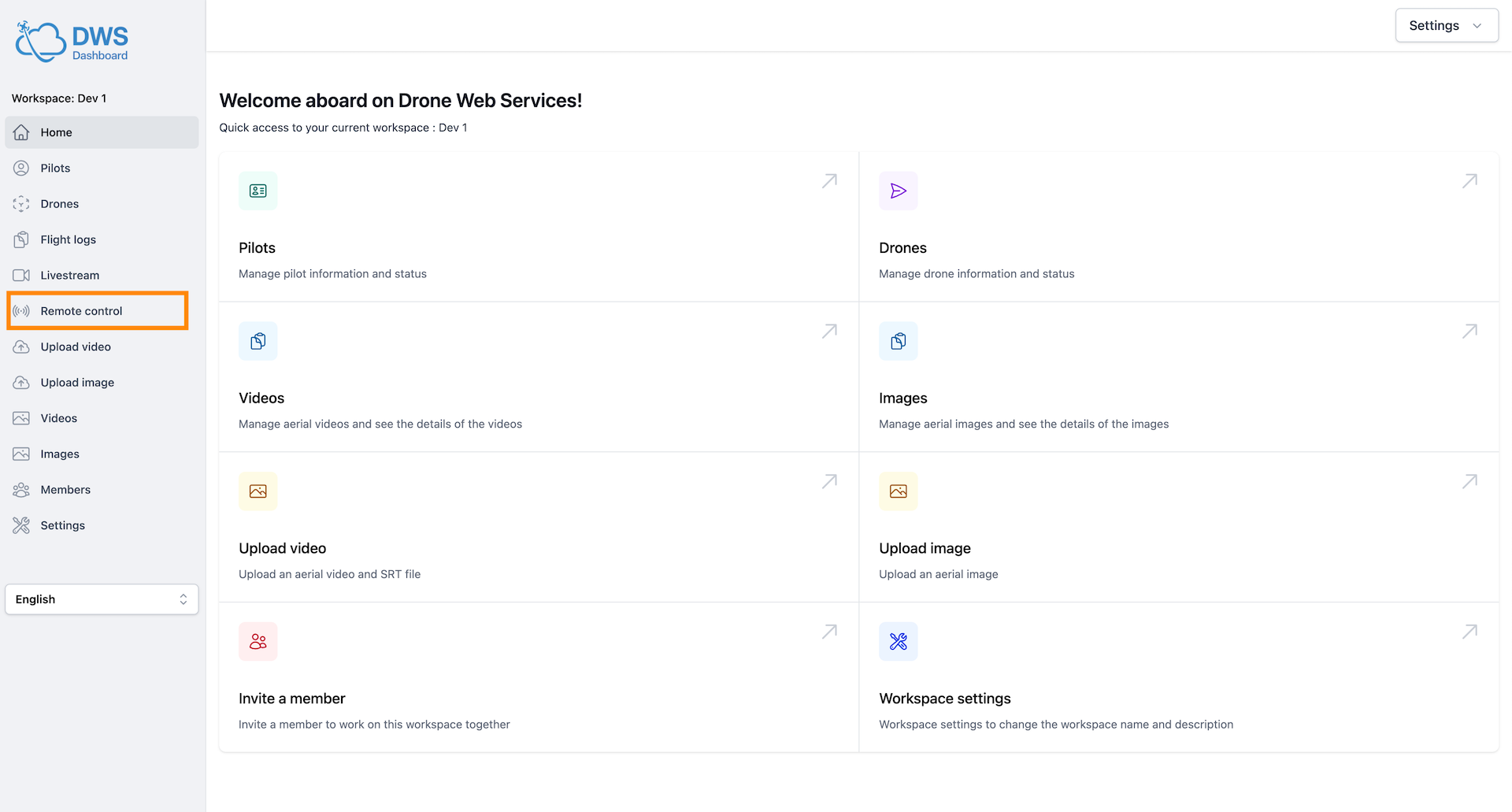
- Please select the "Remote Control" tab in the sidebar.
How to Watch the Livestream
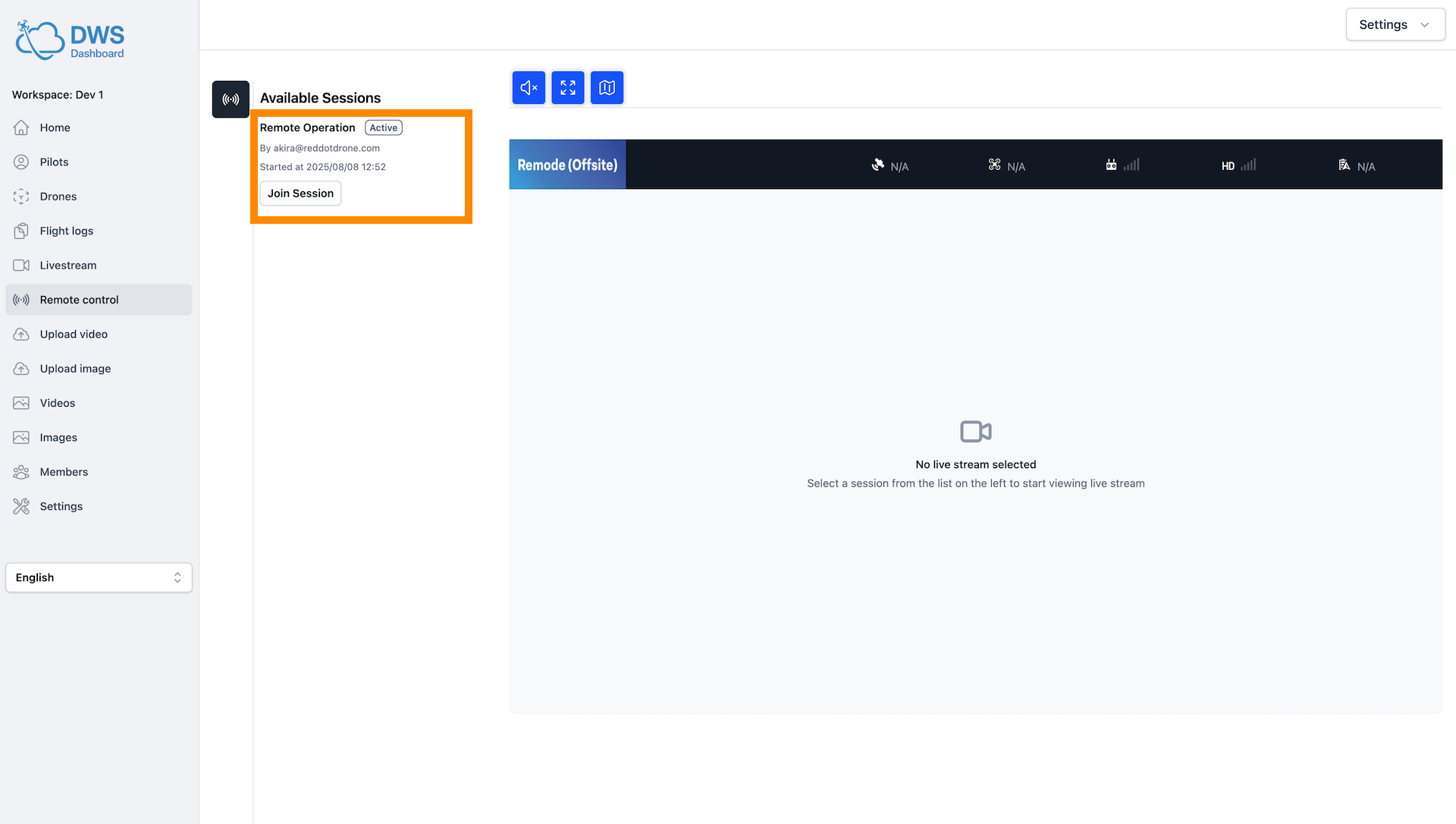
- Click "Join Session" from the list of available sessions.
The refresh button (light-blue-color-bordered) refreshes the list of available livestreams. You can see the livestreams that are currently available.
- Watch the livestream
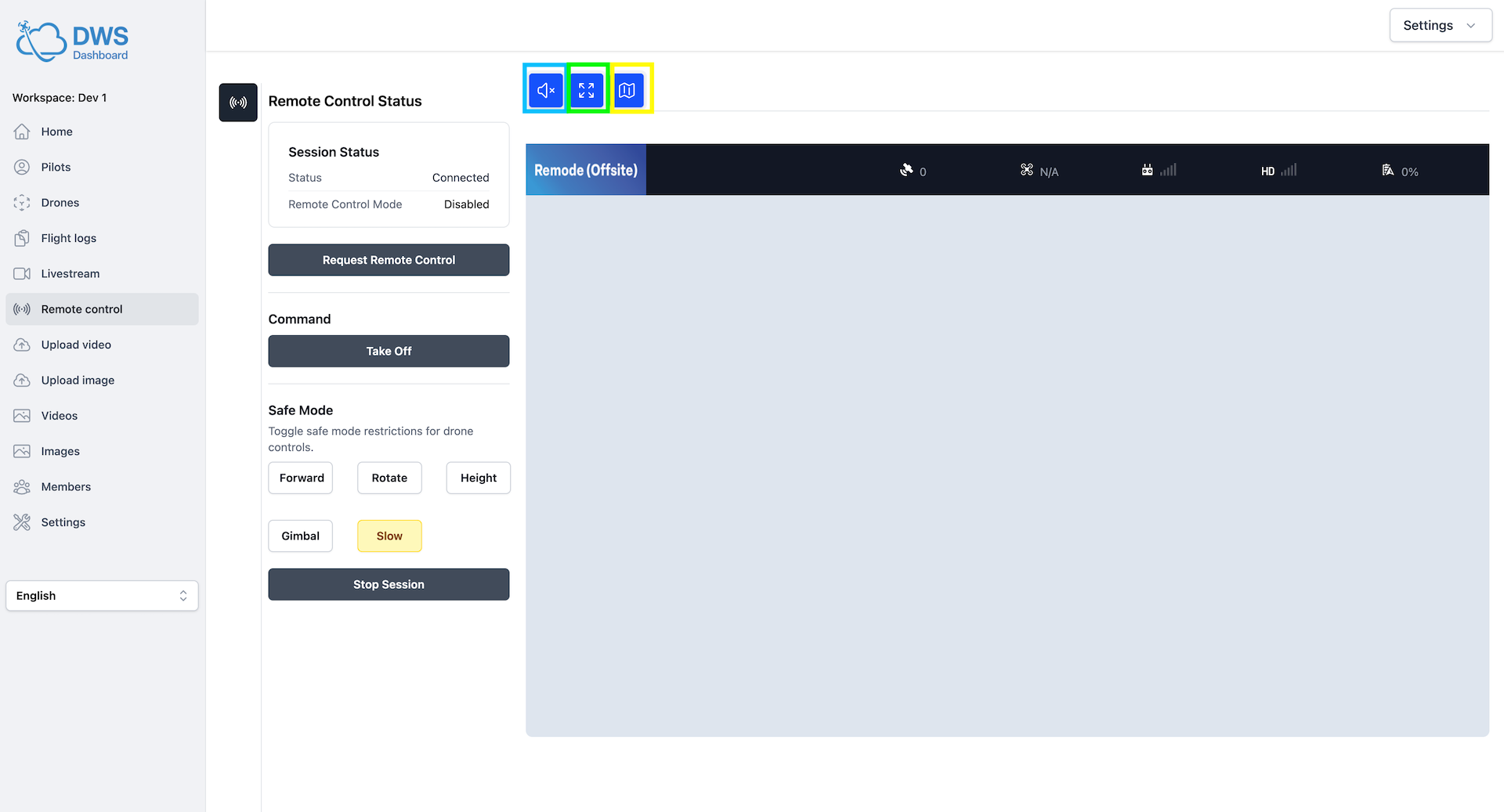
The mute button (light-blue-color-bordered) mutes the sound of the livestreaming video.
The fullscreen button (green-color-bordered) displays the livestreaming video in full-screen mode.
The map button (yellow-color-bordered) opens the map page in a popup screen.
How to Use Remote Control over the Internet
1. Request Remote Control
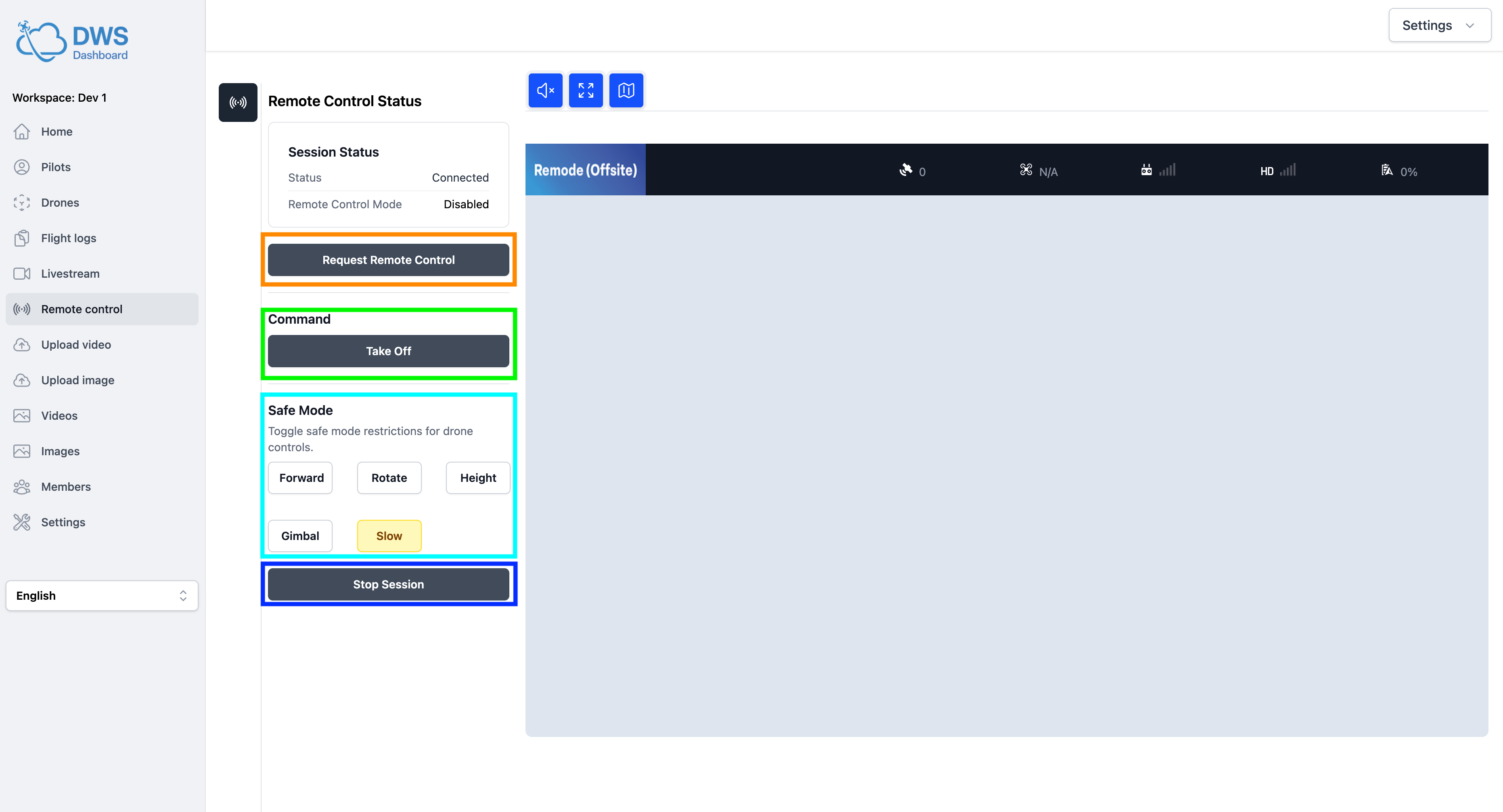
You can send a Remote Control Request from a web browser by pressing the orange-color-bordered button.
Once the session enters remote control mode, Remote Control Mode in the status changes to 'Enabled'.
2. Command
Currently, there are three commands available. (*The mode must be Remote Control Mode to execute commands.)
- Takeoff
- Start Landing
- Stop Landing
3. Safety Mode
Please refer to the Safety Mode page.
4. Stop Session
Please stop the session manually by pressing the blue-color-bordered button.
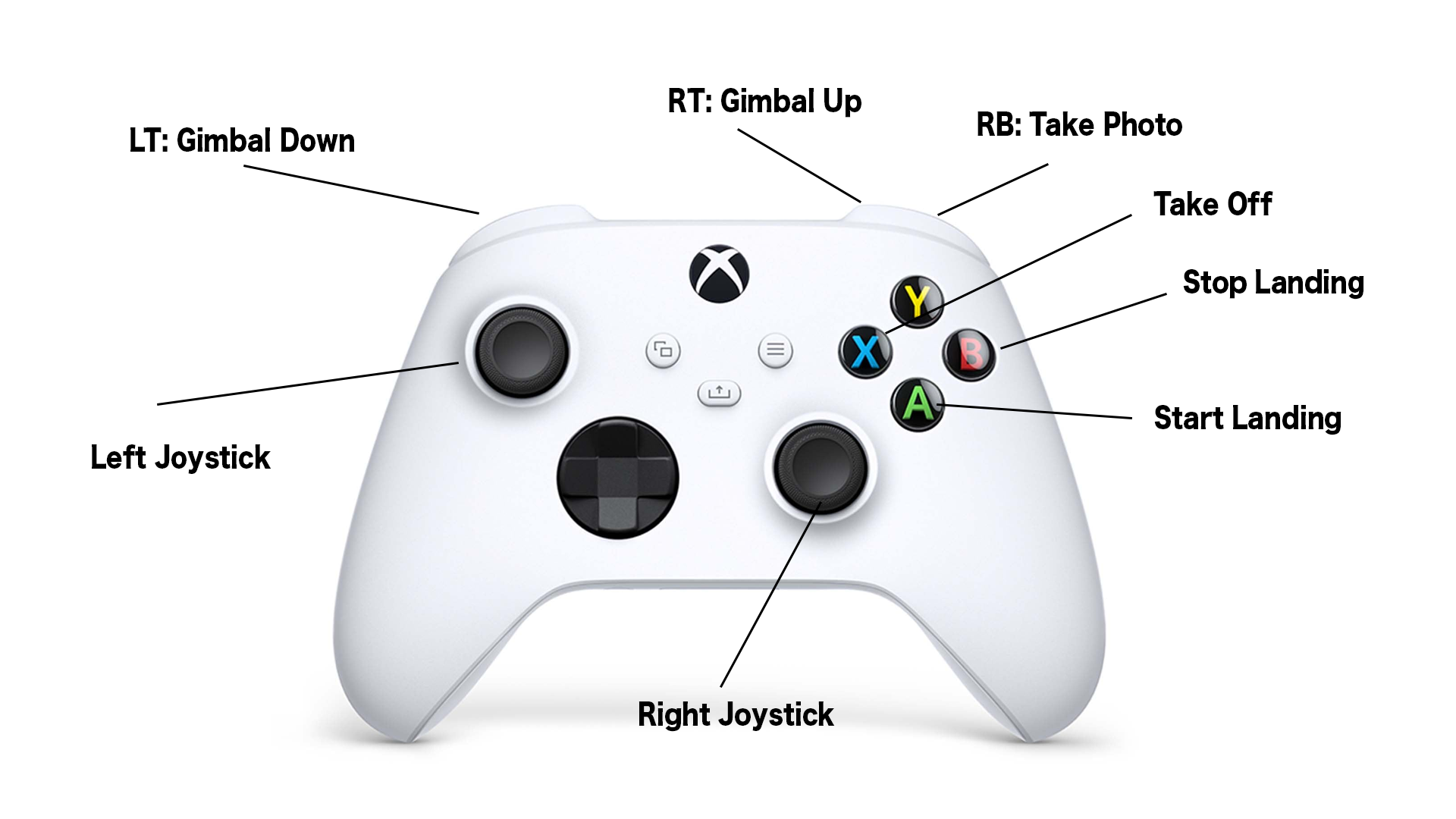
Xbox Control for Remote Manual Control
You can use an Xbox controller to control the drone remotely from a web browser.
Steps
- 1. Pairing Connect to your laptop or desktop over Bluetooth.
- 2. Turn on Turn on the controller.
- 3. Open the remote control page The page automatically detects the connection.
(* Currently only mode 2 is supported)
Button Mapping